Login-form
- To install tkinter in Mac:
brew install python-tk
- Basic window set-up
import tkinter
window = tkinter.Tk()
window.title('Login Form')
window.geometry('440x440')
window.configure(bg='#333333')
window.mainloop()
need to set up a window to work on and set the dimension of the window or background colour of the window or the tittle of the window using the above code.
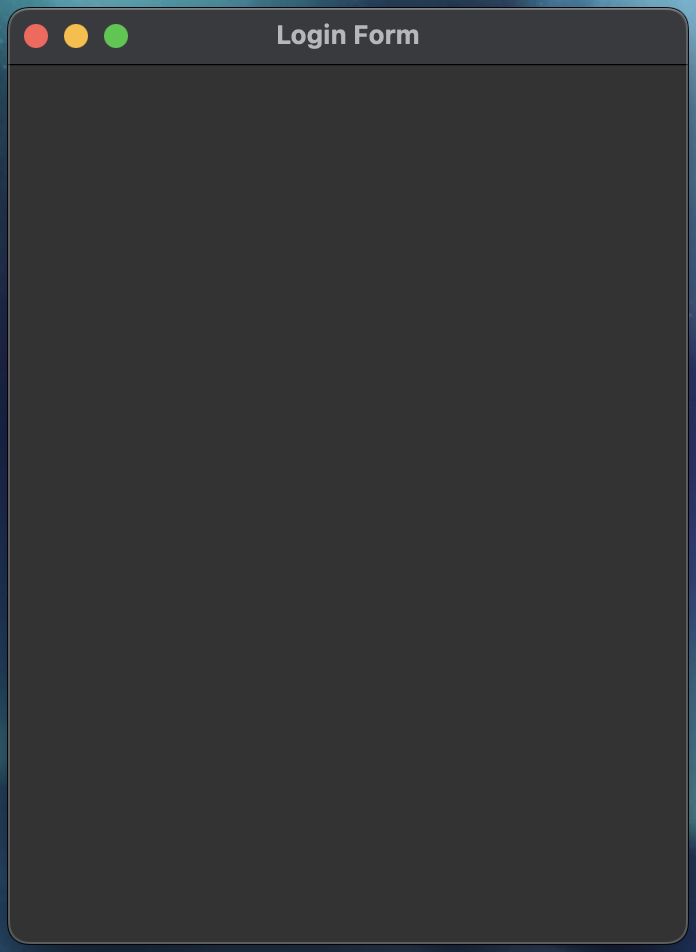
window.mainloop() will run the continuously and your app will be executed. the loop will end only when you close the app window.
- Geometry manager: These are the three ways to position widgets in the window/frame
- pack()
- place()
- grid()
- Creating widgets: (label, enrty, buttons….)
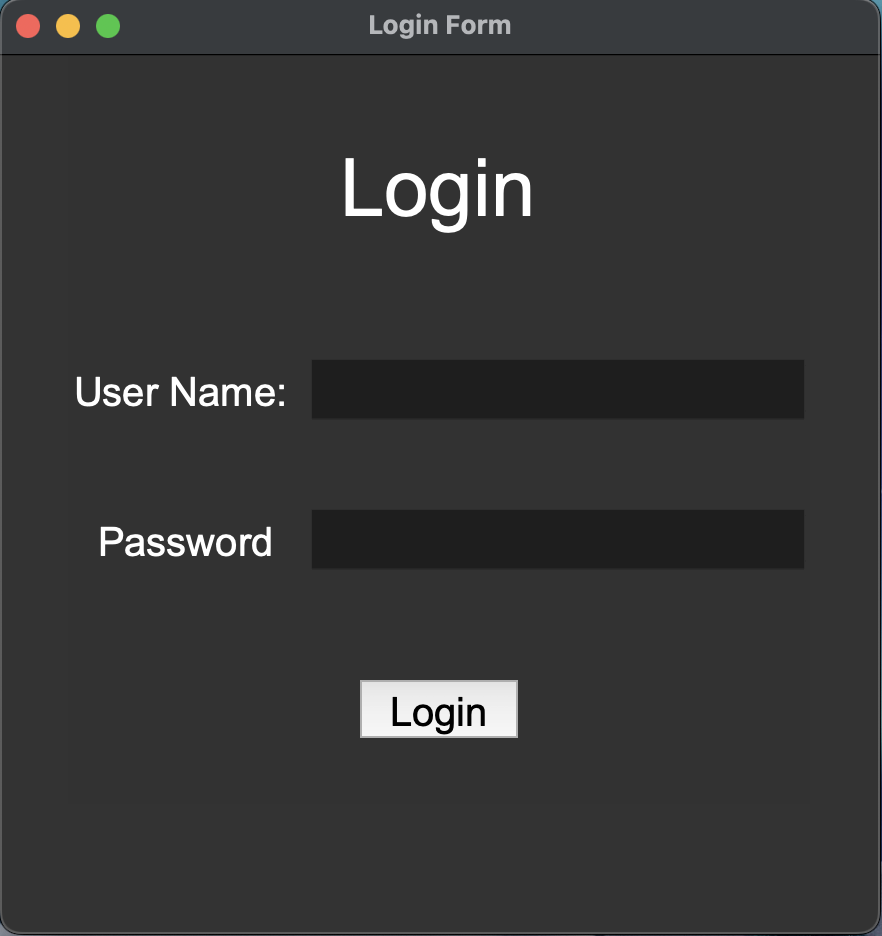
username_label = tkinter.Label(window, text='User Name: ')
username_label.grid(row=1, column=0)
creating a label using tkinter.Label() and placing in a window using .grid()
For inputs use:
username_entry = tkinter.Entry(window)
username_entry.grid(row=1, column=1)
tkinder.Entry() i used to create user input box and .grid() for its position in the window.
for password:
password_entry = tkinter.Entry(window, show='*')
password_entry.grid(row=2, column= 1)
show= ‘*’ can be used to hide password. It will show * in the window
- Changing background, font style, font- size, bg(background), fg(foreground):
font colour of any widget can be changed by using: fg(foreground)
username_label = tkinter.Label(window, text='User Name: ', fg='#FFFFFF ')
also, we can change the background colour of any sell in the grid or bg of specific txt using:
username_label = tkinter.Label(window, text='User Name: ', bg='#333333')
This code changes the background colour User Name:’ label to white.
login_label.grid(row=0, column=0, columnspan=2, sticky='news')
to change the font:
username_label = tkinter.Label(window, text='User Name: ',font=('Arial', 16))
to make it a bit responsive use another frame inside window and use .pack:
frame= tkinter.Frame()
username_label = tkinter.Label(**frame**, text='User Name: ',font=('Arial', 16))
username_label.grid(row=1, column=0)
frame.pack()
- for message box: import message box from tkinter:
from tkinter import messagebox
how message box can be used:
def login():
    username = 'gurleen'
    password = '12345'
    if username_entry.get() == username and password_entry.get() == password:
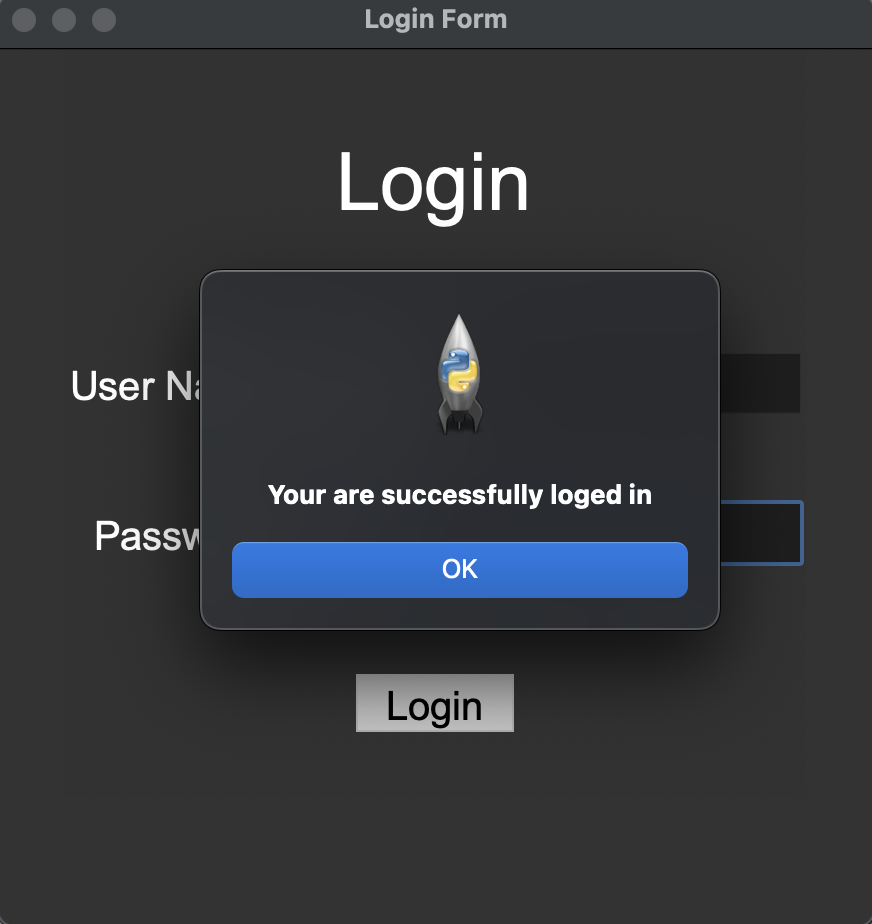
        messagebox.showinfo(title='Success', message='Your are successfully loged in')
    else:
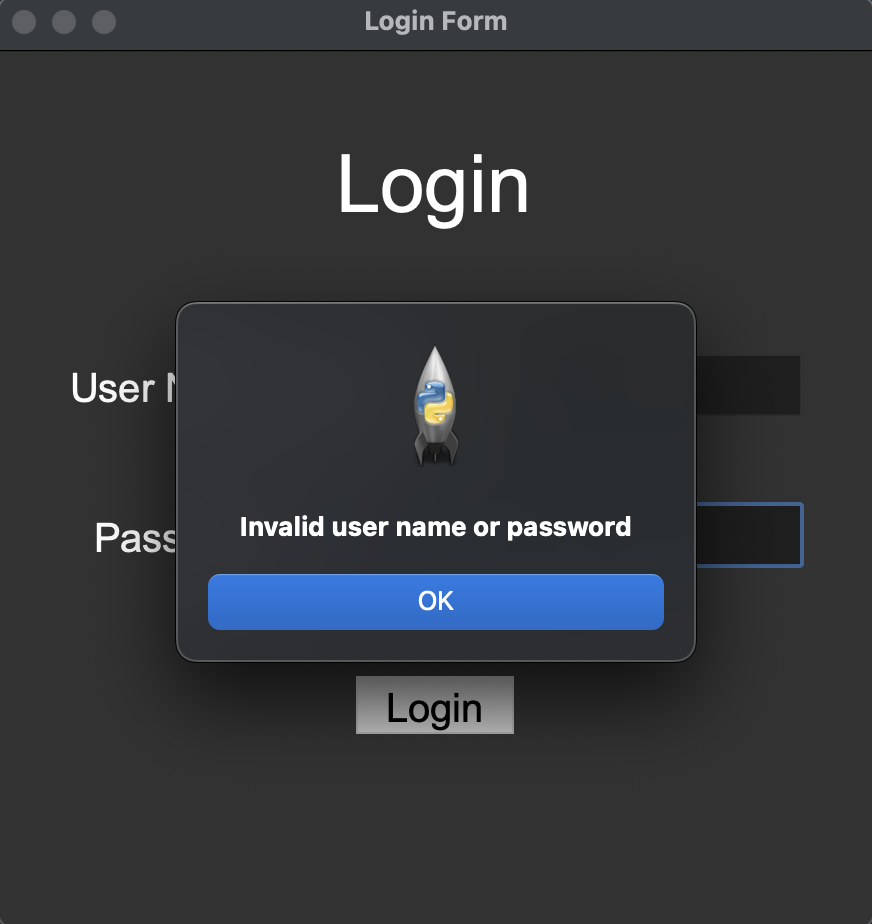
        messagebox.showerror(title='error', message='Invalid user name or password')
.get() is used to get input of the user.
To can this fn use command=login
button = tkinter.Button(frame, text = 'Login',font=('Arial', 20), command=login)
Result: